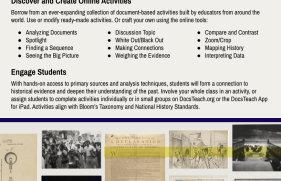
Once you register for an account and log in on DocsTeach.org, you can pull primary sources together into an activity using one of the DocsTeach tools.
Your students will be able to engage in your activity online at a direct URL such as docsteach.org/activity/the-constitution-at-work. Your activity will have a teacher page too, like the one at docsteach.org/lesson/the-constitution-at-work. Other teachers might even borrow your finished activity!
Get started by exploring the activity tools.
Click on “Create Activities” on DocsTeach.org to go to docsteach.org/lessons/create-an-activity. Explore the 12 available tools. Be sure to click on “Learn More” for each tool to:
- Identify learning objectives,
- Find teaching tips, and
- Explore examples of activities created with that tool.
If you know which tool you want to use for your activity, you can use the Menu to navigate to “Activities” and choose “Create an Activity.” At that point you can choose your activity type, give it a name, and then select primary source documents and write instructions.
Or you can begin by searching for documents for your activity as outlined below.
Gather primary sources for your activity.
- Use the Menu to navigate to “Primary Sources” at docsteach.org/primary-sources.
- Search for a particular topic, refining by historical era or document type. If you’d like, you can leave the search box blank and simply click on one or more eras or types to browse the collection.
- When you find a document that you want to use, click the plus sign above the image to either add specific pages or all pages.
- You can choose to Add to My Documents to an existing folder related to an activity you have already started, or you can Add to My Documents as a new folder that you can use when you create a new activity.
- Find all of the documents you want and add them to the same folder.
Create an activity.
- Use the menu to navigate to “Activities” under “My Account.” Click on “Create an Activity.” Select the select the type of activity you’ll make (e.g. Analyzing Documents, Compare and Contrast, etc) and hit “Create.”
- On the “General Information” tab, give your activity a title that students will see. You can use the same, similar or different title for other teachers to see. Enter the Author name that you want educators and students to see. Click on “Save and Continue” to proceed to the next step.
- Note: You can return to earlier steps at any point by clicking on the step in the left column.
Arrange the documents and elements in your activity.
- Click on the “Add Elements” tab.
- If you have already created a “My Documents” folder, you can select which documents to include in your activity. Here you can also remove specific documents or pages you’ve decided you no longer want in the activity.
- You can also choose to go find additional sources by selecting “Add Primary Sources” to pull more documents into your activity from this tab.
- And you can include sources from beyond the holdings of the National Archives by selecting “Upload Files.” Note: Please do not upload copyrighted work without permission/license of the copyright owner.
- You can also control whether students will have access to all details available for the documents in the activity (including dates and descriptions) or simply the document images and titles.
Set up and configure your activity.
- Click on the “Edit Elements” tab to set up your activity the way you want your students to see it.
- You may need to write questions, make pairs, write interpretations, crop images, use the drawing tool, etc. to configure your activity the way you want it. Specific activity types also have an additional step to create the activity. Follow the instructions provided. For example:
- “Connect Elements” for Making Connections
- “Order Elements” for Finding a Sequence
- “Pair Elements” for Seeing the Big Picture
- “Analysis Questions” for Analyzing a Document
- “Topics and Interpretations” for Weighing the Evidence
- “Plot Elements” for Mapping History and Interpreting Data
Write instructions for your students.
- Click on “Student Instructions” tab.
- Write an introduction that students will see when they open the activity. Identify the topic. Provide any necessary historical context. And give directions so that students know what they are expected to do.
- Include discussion questions or additional instructions if needed, especially if the student activity includes multiple steps or stages.
- Write a conclusion that wraps up the activity for your students. You can include further instructions for classroom discussion or participation, or follow-up questions for students to answer. (Students can email their responses to you if desired.) Write questions that will require students to carefully analyze and think about the documents they saw and to reflect on what they learned while doing the activity.
Describe your activity for yourself and teachers who borrow it.
- Click on “Teaching Instructions” tab.
- In the summary field, write a brief overview of what to expect. Teachers should be able to read this and quickly decide if the activity is appropriate for their classroom and curriculum. It’s helpful to include key vocabulary and names.
- Include detailed instructions explaining how to teach with this activity:
- Indicate where the activity fits into the curriculum and why a teacher might use it.
- List the approximate amount of time needed to complete the activity.
- Note whether the activity is meant for a full class, small group, or an individual student.
- Provide a step-by-step approach for using your activity in the classroom.
- Write as if you’re writing notes to yourself or a lesson plan.
- Include historical background that other teachers might need.
- Don’t be so specific to your own classroom that others can’t use it.
- Label your activity by choosing the most appropriate selection from the drop-down menus for:
- Historical Era
- Historical Thinking Skill
- Bloom’s Taxonomy
- Grade Level
Edit.
- Review your activity and instructions. Check that there are no spelling, grammar, or punctuation errors. Make sure the instructions are clear and that the activity can stand on its own: that anyone accessing the activity knows what they’re being asked to do. Make any changes you need to.
- Revisit your activity title, both for teachers and for students. Make sure it conveys what the activity is about. Plainly state the topic and/or what students will do. Check that there isn’t already an activity on DocsTeach with your proposed name.
- After you publish, you can still return to the activity and make additional edits. You can access your activity at any time in “My Activities.”
Preview the student activity and create a snapshot.
- Click on the “Preview and Publish” tab. Take a Snapshot to create a thumbnail for search results of the main interactive feature of the activity. You can also preview the activity as your students and other teachers will see it.
Publish.
- Once your activity is ready for your students, and you’ve included a thorough and clear description, it’s time to “Publish.” You’ll be able to share it with students by giving them the unique URL. Your “Teacher” lesson page will be visible to anyone who is logged into DocsTeach or who has that unique URL.
- In the bottom left, choose “Publish” save and publish your activity. After you publish, you can still return to the activity and make additional edits. You can access your activity at any time in “My Activities” and click on “Edit Activity.”